

1.0.20 – Release Notes – 2026/06/08
Assets rarely stand alone, and now your exports tell the full story.
We’ve added Asset Hierarchy History to your exports, giving you total visibility into current and past equipment connections directly within a spreadsheet.
We’ve also upgraded image navigation, added clear export feedback, and polished our AI workflows.
🛠️ Enhancements
Export with Asset Hierarchy History
Exports now include a Parent Asset column and organize child assets beneath their parent assets.
How It Works
- Navigate to the “My Assets” screen.
- Tap the “More” icon at the top right of the screen.
- Tap “Export Asset List”.
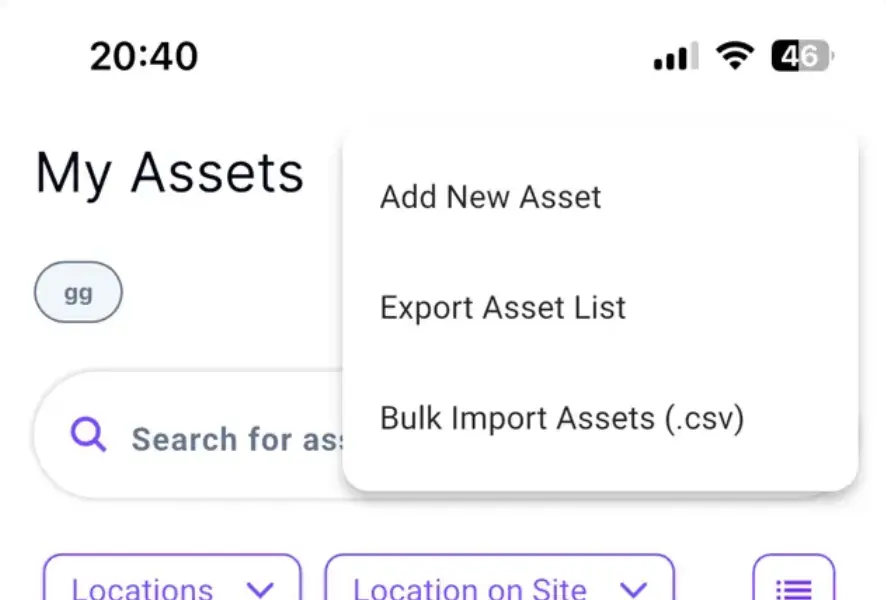
Open the file after saving it to the device.
- You can now track equipment relationships using the new “Relationship History” column in your export.
- By default, assets are listed as parents.
- If a child asset is linked, it will automatically appear in the designated child column.
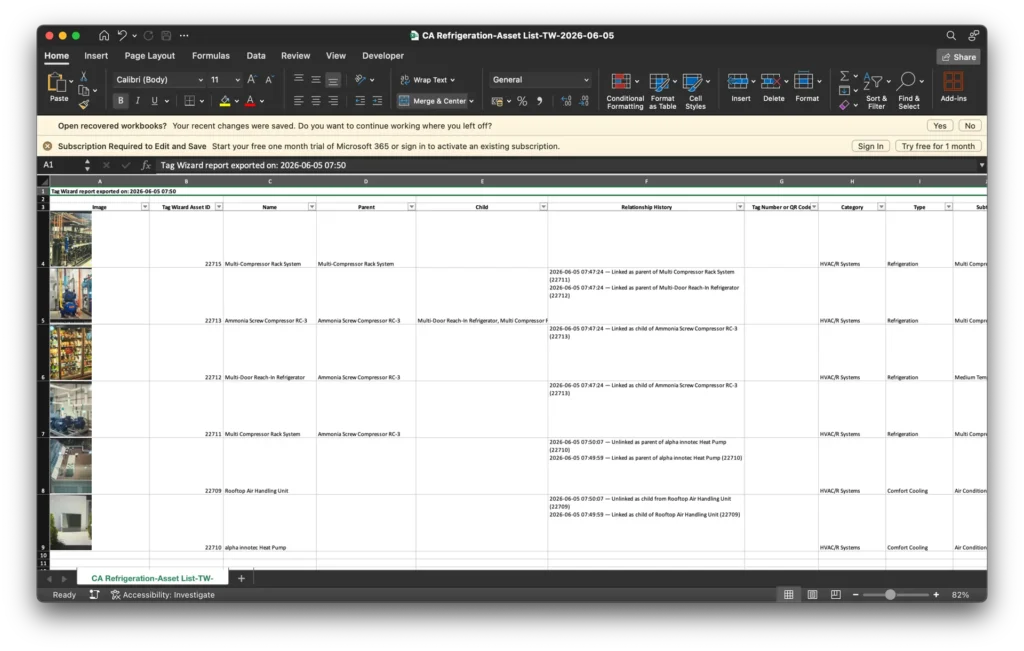
Why it’s Great
Understand equipment relationships at a glance and visualize parent-child structures outside the app.
Swipe Through Asset Images
Reviewing asset images is now smoother. Open any image in full-screen mode and swipe left or right to move between photos without leaving the viewer.
Why it’s great
Quickly browse all asset photos without repeatedly opening and closing images.
Export Progress Indicator
A loading spinner now appears whenever an export is running, providing clear feedback that the export is in progress.
Why it’s Great
Prevents duplicate exports and gives confidence that your file is being generated successfully.
🐛 Bug Fixes
Asset Relinking Restored
Assets can now be relinked after an existing parent-child relationship was removed.
Asset Lists Refresh Automatically
Newly created assets now appear automatically in My Assets without requiring a manual refresh.
Lookup Assets Updating
Users can now save assets after adding a new image following an Asset Look Up.
AI – Asset Lookup reduces incorrect matching
Improved Lookup behavior to reduce incorrect matches and prevent AI hallucinations when identifying assets from images.
AI – Asset Identification During Asset Creation
We’ve improved the Add Asset workflow by removing image similarity matching that could incorrectly identify new assets as existing ones.
AI – Refrigerant Type Now Populates Correctly
AI now correctly recognizes refrigerant information from uploaded images and automatically populates the Refrigerant Type field while also including the information in the generated notes.
Category Dropdown Reliability
Category fields no longer display raw IDs or empty values; instead of category names.