
1.0.23 – Release Notes – 2026/07/21
Version: 1.0.23
Your AI assistant just got smarter.
Version 1.0.23 introduces AI-powered deep search to help you complete asset details, faster exports delivered straight to your inbox (even for large inventories with multiple asset images), and a range of mobile improvements that make every workflow faster and smoother.
 Enhancements
Exports are better optimized for mobile devices.
Choose the export option that best fits your needs:
- Export all locations without images for faster downloads,
- Export a single location with all associated asset images included.
How It Works
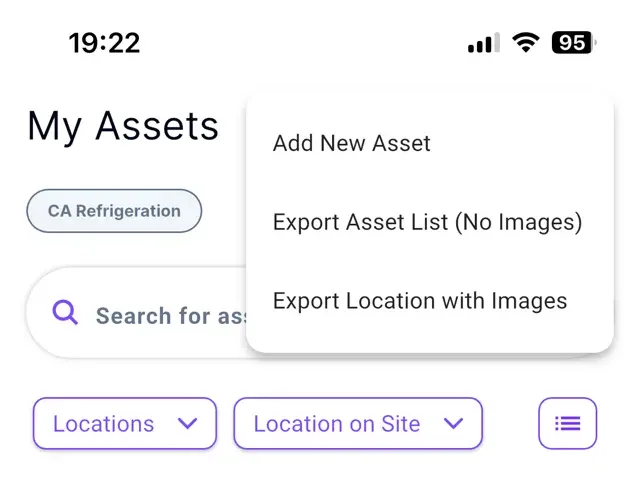
- Navigate to the “My Assets” screen.
- Tap the “More” icon at the top right of the screen.
- Select the export option that best fits your needs.
1. “Export Asset List (No Images)”
- Export all locations by default, or use the “Locations” filter to select one or more locations.
- Tap on “Export Asset List (No Images)”
- The file is being generated.
- Open the file after saving it to the device
2. Export a single location with the assets’ images
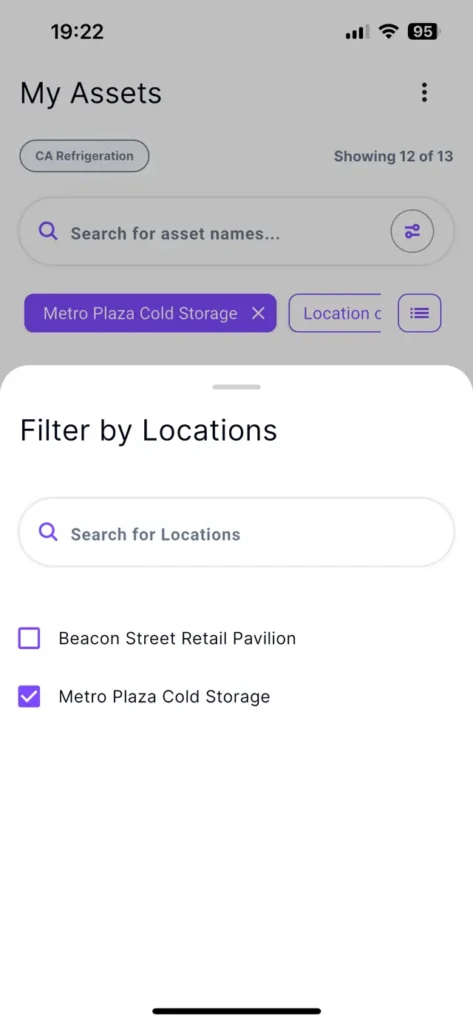
- Tap the “Locations” filter dropdown.
- Tap the “Locations” filter and select the location you want to export.
To keep exports fast on mobile, inventory exports with images are limited to one location at a time.
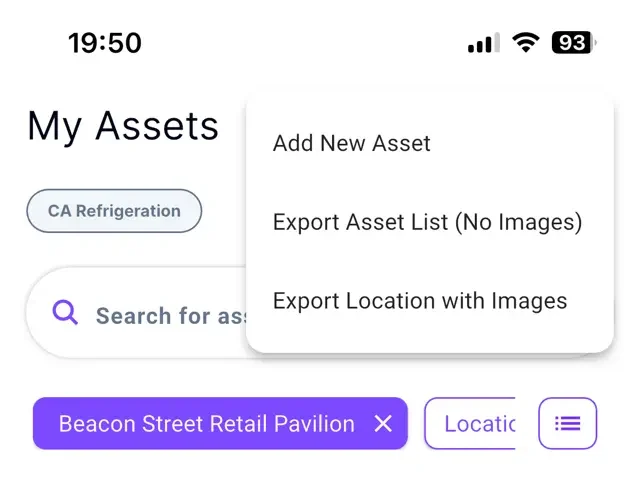
- Tap “Export Location with Images”.
- A ZIP file is being generated.
- Open the file after saving it to your device.
- A copy will also be sent to the email address associated with your Tag Wizard account.
Why it’s Great
Enjoy faster, more reliable exports on mobile. Lightweight exports keep large inventories moving quickly, while full asset exports with all associated images are available whenever you need them.
Your AI Agent Helps Complete Missing Asset Details
Not every asset label tells the full story, and you can’t be expected to know every specification from memory.
When information is missing from labels or images, the AI Agent searches trusted online sources, suggests relevant values for your review, and lets you apply them with a single tap.
How It Works
- Navigate to the “My Assets” screen
- Select an Asset
- Tap the AI icon in the top-right corner
- Ask the AI Agent to find missing information about your asset.
The AI analyzes your asset details and images, then searches trusted online sources for additional specifications and information.
-
- Review the suggested values and their sources.
- Tap “Apply” to add the recommended value to your asset.
- The data will be added to the field with the indicator “Added by AI.”
Why it’s great
The asset record is more complete, accurate, and audit-ready, with you always in control of what gets added.
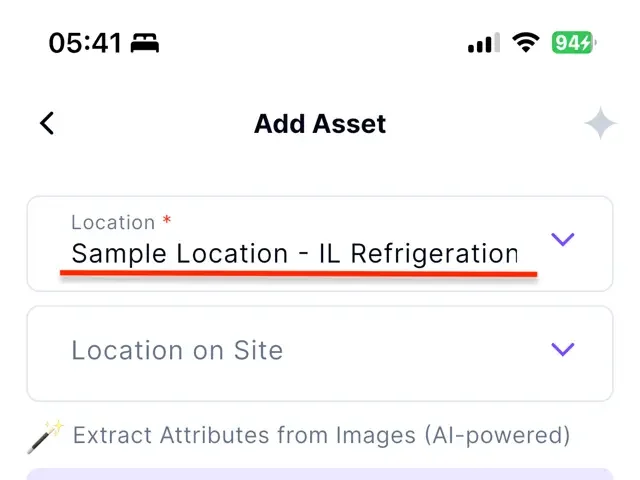
Start Tagging Instantly with a Sample Location
Getting started with Tag Wizard is now even easier.
Every new organization automatically receives a default location, so you can begin adding assets right away without any extra setup. You can edit this location or add a new one at any time.
Why it’s Great
Skip the initial location setup and start tagging assets immediately for a faster, smoother onboarding experience.
Create Locations While Adding a New Asset
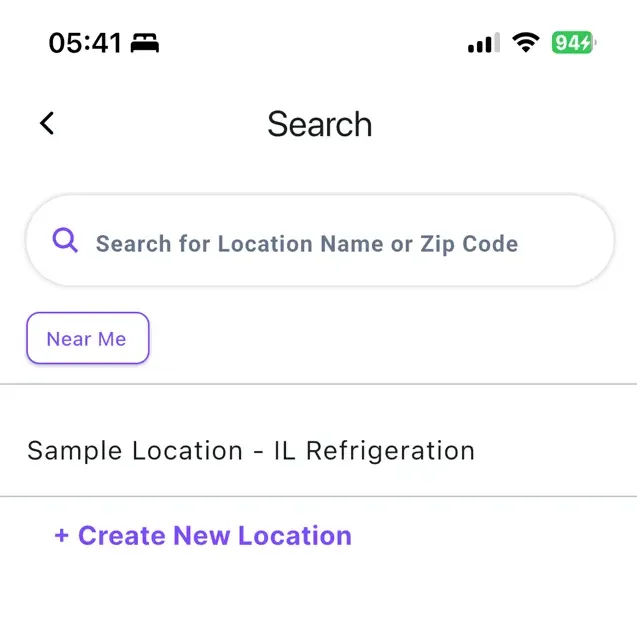
Create a new location directly from the “Add Asset” screen instead of switching to “My Locations”, so you can continue creating your asset without starting over.
How It Works
- Navigate to the “My Assets” screen.
- Tap “Add Asset”.
- Start entering the asset information.
- Tap the “Location” field.
- Tap “+ Create New Location”.
- Fill in the location details and save.
- The new location is automatically selected in the Location field, allowing you to continue creating the asset.
Why it’s Great
Keep your workflow uninterrupted by creating locations on the spot and continuing the asset creation without re-entering information.
Improved Text Input
Text fields now automatically capitalize the first letter of each sentence.
A small improvement that helps keep your data clean.
Never Miss an Update
Tag Wizard now lets you know whenever a new version of the app is available, so you always have access to the latest features, improvements, and bug fixes.
 Bug Fixes
Improved Manufacturer Recognition
The AI now only fills the “Manufacturer” field when it matches an existing manufacturer in your database.
If no match exists, you can add the manufacturer manually, helping keep your data clean.
Subscribe Without the Extra Step
The redundant subscription screen is gone. Success and error messages now provide instant feedback while keeping your workflow uninterrupted.