

1.0.30 – Release Notes – 2026/10/11
Version: 1.0.30
🛠️ Enhancements
Capture More Attributes for HVAC/R Assets
Capture critical HVAC-specific details to better identify equipment, track system configurations, and support refrigerant leak detection compliance.
For Comfort Cooling & Process Cooling Systems:
Capture Cooling Stages and Economizer details.
For All HVAC/R Systems
Track Leak Detector status:
- Required when the appliance refrigerant charge exceeds 500 lb.
- Optional when the charge is 500 lb or less.
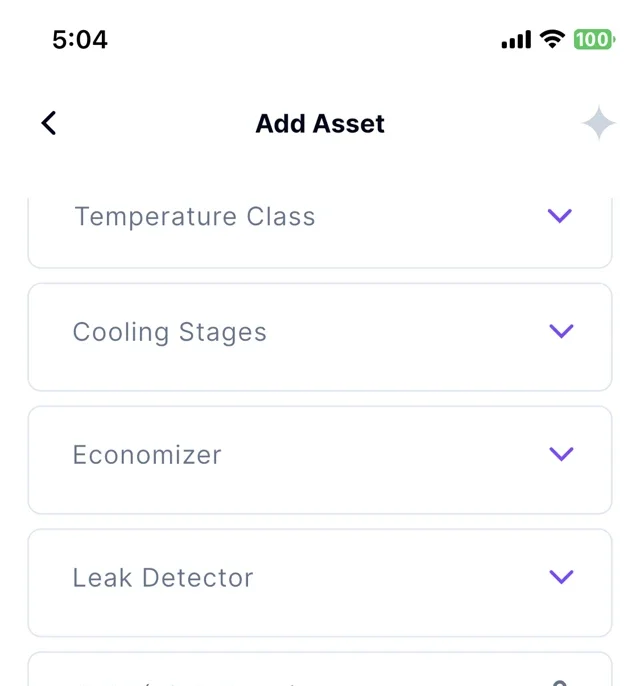
Why It’s Great
These enhancements help facilities teams document critical equipment information and identify systems that may be subject to refrigerant leak detection requirements.
Regulatory context: The EPA regulates refrigerant leak management under Section 608 of the Clean Air Act and the AIM Act.
Keep Capturing Assets at Your Own Pace
Take photos of your assets and let AI handle the analysis when connectivity is restored, or the AI service becomes available.
Whether you’re working in areas with unreliable internet or the AI service is temporarily unavailable, you can keep scanning assets and let the app process them automatically when possible.
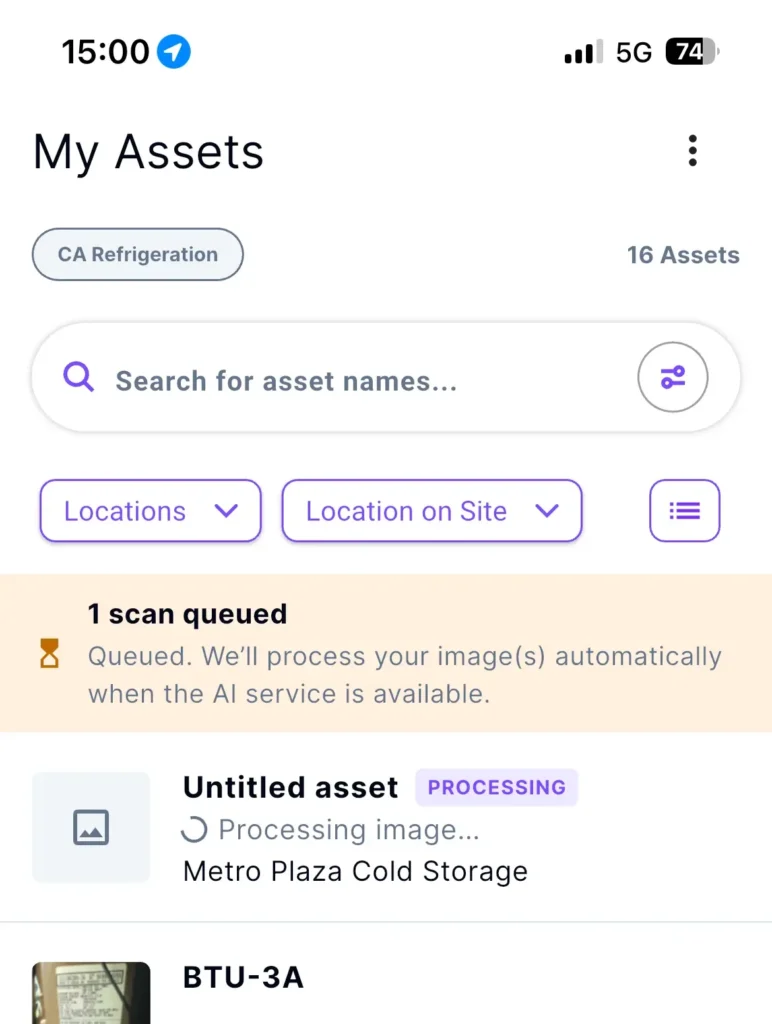
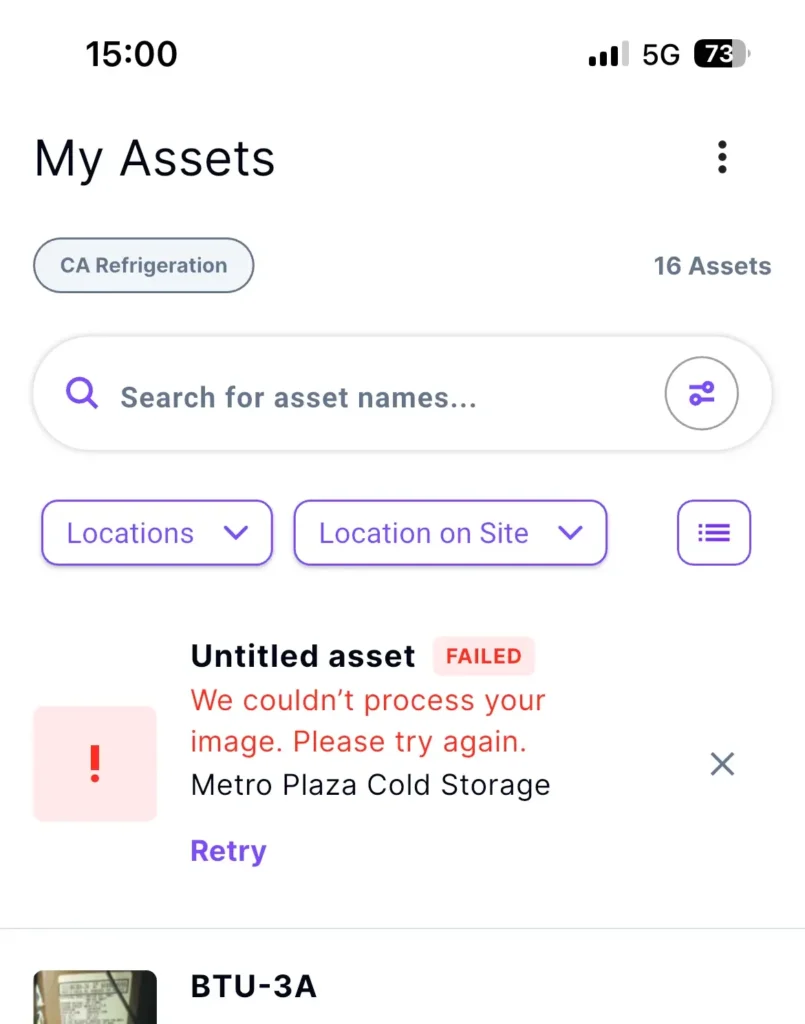
Track each scan’s status (queued, processing, failed, or completed) and easily identify assets that are still being analyzed.
How It Works
- Navigate to the “My Assets” screen
- Tap the “Add Asset” button
- Tap the “Upload Asset Image(s)” button to upload the image
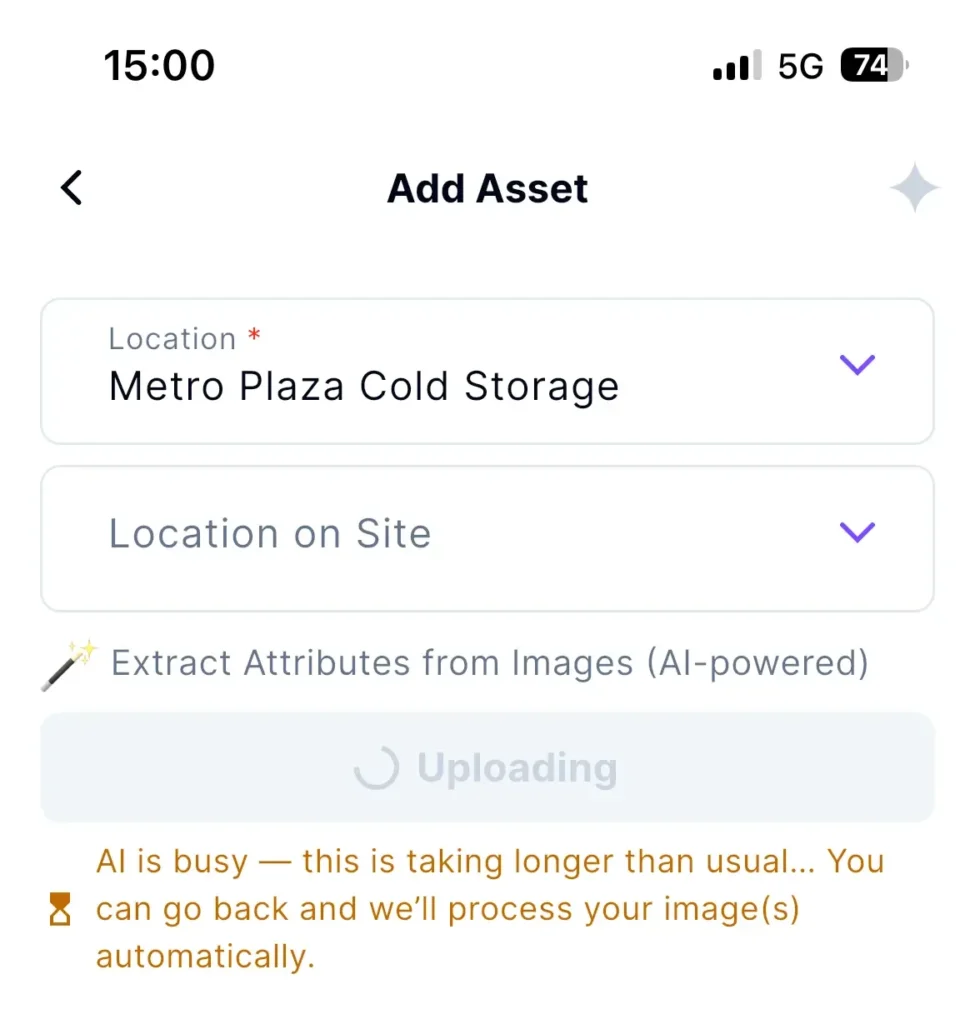
- If the AI service is slow or unavailable, or if your device has a poor internet connection, the app will notify you that the scan has been queued
- Tap the back button to continue with other tasks while the AI processes your images in the background
Check the asset processing status on the “My Assets” screen
- The app will notify you when the scan is complete, and the asset details will be updated automatically.
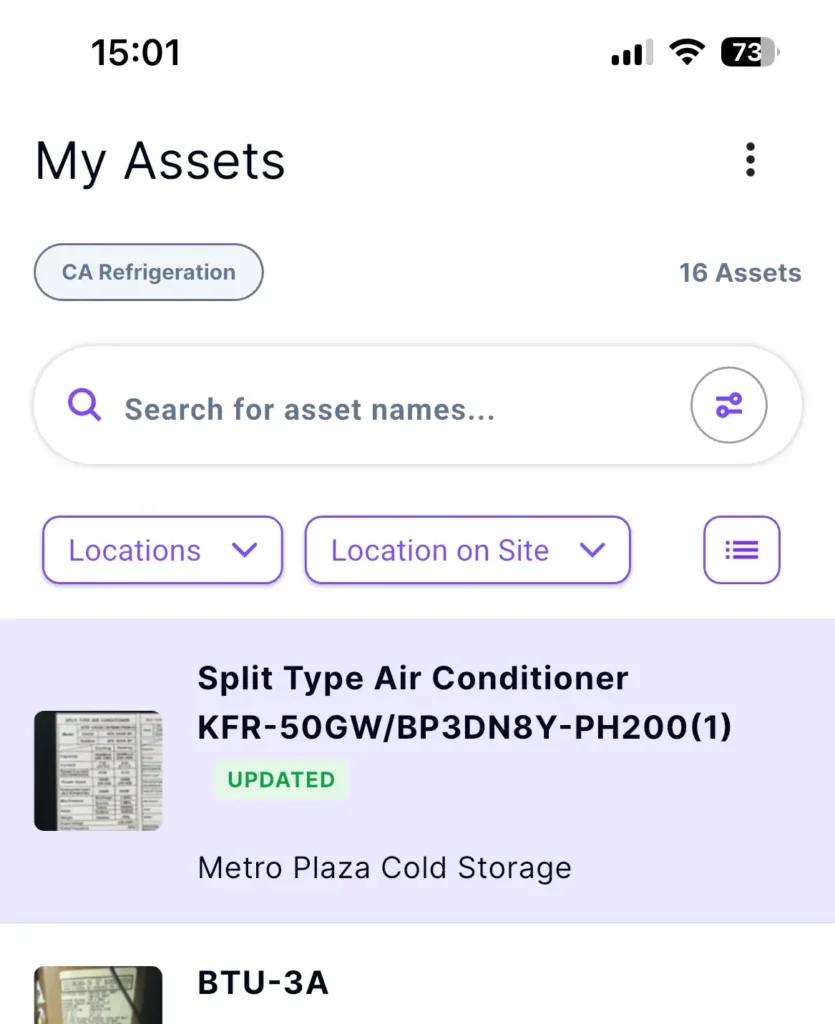
The app will notify you if the scan fails after the maximum number of retries.
- Then you can tap the “Retry” button to try processing the image again or delete the asset.
Why It’s Great
Keep working at your own pace, even with limited connectivity or AI service interruptions. Your scans are queued for processing, so you can focus on documenting assets instead of waiting for results.
AI Scans That Keep Moving
If an asset scan times out or fails due to temporary AI service issues, the app automatically retries before displaying an error, preventing users from getting stuck on a loading screen.
Why It’s Great
Enjoy a smoother asset scanning experience with automatic retries and clear feedback, even when the AI service takes a little longer to respond.
🐛 Bug Fixes
Improved Numeric Field Validation
Numeric fields, such as Voltage, now accept only valid numeric values, whether entered manually or suggested by Wizzy.
Reliable Location List Display
The Locations screen now displays all locations correctly when navigating back or refreshing after selecting a specific map pin.