
1.0.31 – Release Notes – 2026/10/26
Version: 1.0.31
🛠️ Enhancements
Find Equipment Without the Guesswork
Struggling to find the right equipment classification?
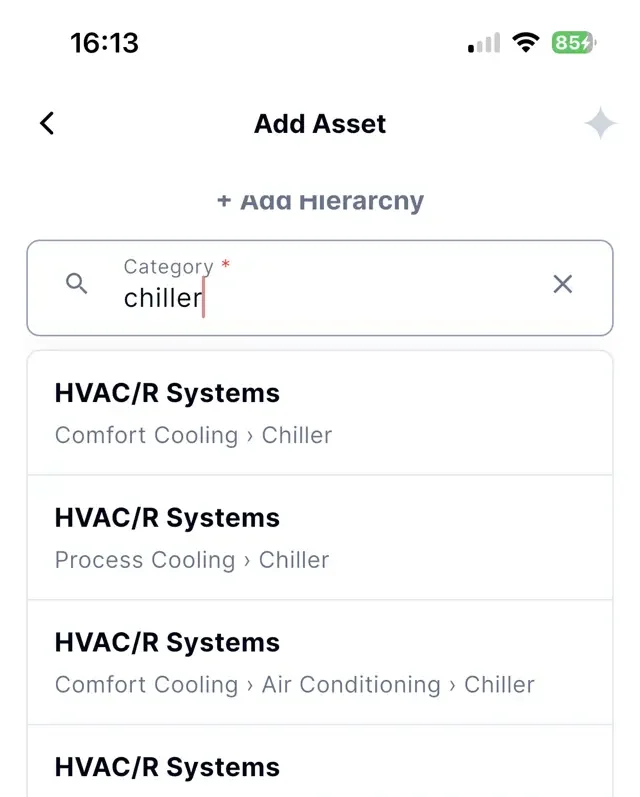
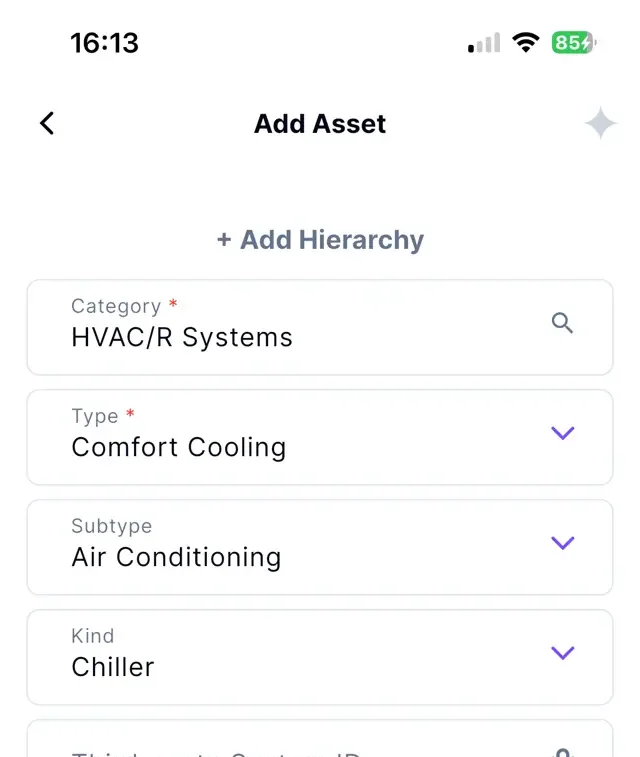
Now, search for any value directly in the Category field. For example, search for “Chiller,” and Tag Wizard will find the matching result across Category, Type, Subtype, and Kind, then automatically populate all four fields.
How It Works
- Navigate to the “My Assets” screen.
- Tap the “Add Asset” button.
- Enter the equipment classification you’re looking for in the “Category” field to find matching results across all four taxonomy levels.
4. Select a result to automatically populate all four fields; no need to fill them in one by one.
Why It’s Great
Find the exact equipment you need in seconds. One search fills all classification fields, so you can skip the dropdowns and get back to tagging assets.
Smarter AI Asset Classification
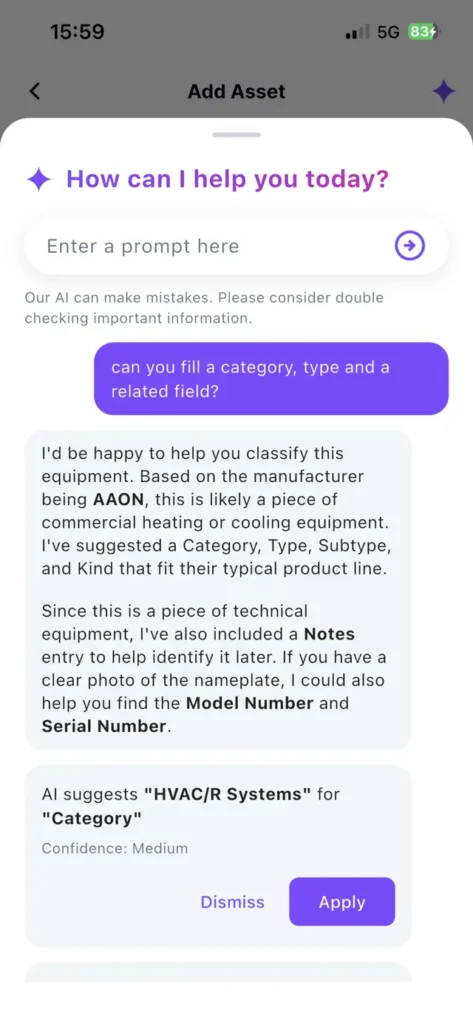
Let Wizzy do the classifying for you. Upload a photo, and Wizzy can suggest the right Category, Type, Subtype and Kind automatically. No need to select a Category or Type first; just upload your photo and get started.
How It Works
- Navigate to the “My Assets” screen.
- Tap the “Add Asset” button.
- Fill in “Location” and “Name”. You can leave Category and Type blank.
- Tap the Wizzy icon in the top-right corner.
- Ask Wizzy to classify the asset and fill in the relevant information automatically, without selecting Category or Type first.
Why It’s Great
Skip manual classification and let Wizzy identify your asset from a photo, making AI-powered asset tagging faster and easier than ever.
Clearer AI Scan Status Updates
Know exactly when your assets are queued for AI analysis with clearer status messages. Failed scans now display a single Try Again button, keeping the Asset section clean and organized.
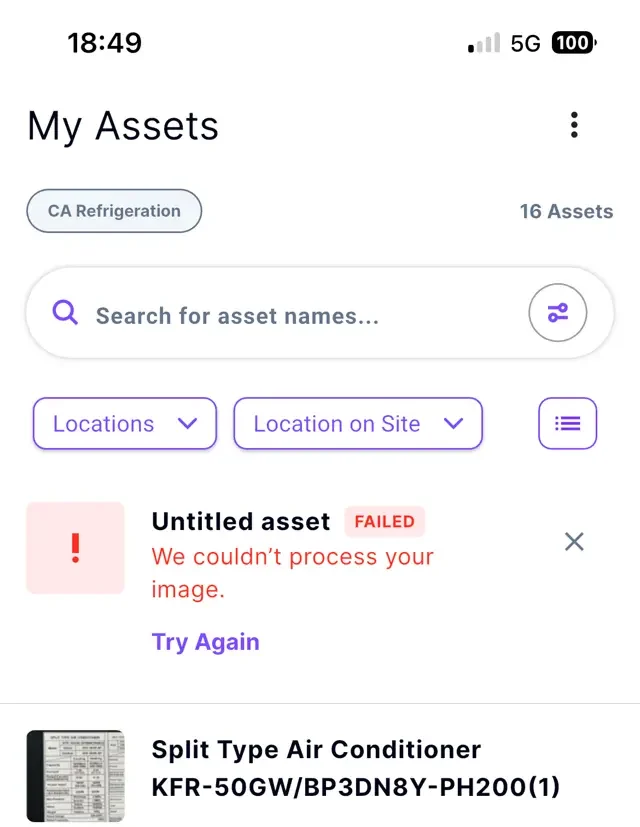
Why It’s Great
Clearer feedback and a cleaner interface when your assets are queued for AI Analysis.
🐛 Bug Fixes
Save Assets Even When Cooling Stages Are Unsupported
When a scanned HVAC unit has an unsupported Cooling Stages value, the field now defaults to “Unknown” so you can save the asset. The original value is preserved in the asset notes.
Access Subscription Settings Even with Connection Issues
The Subscription section now remains visible in Settings even when the app cannot verify subscription settings due to network issues.
Never Lose an Asset Record, Even Without a Selected Location
Assets scans are now retained even if you leave the Add Asset screen before processing is complete.
Queued assets appear in “My Assets” with a processing status. If no Location was selected, the asset is automatically assigned to your most recently used location.
Endless Loading on My Assets
The “My Assets” screen now handles temporary network interruptions without leaving the refresh spinner running indefinitely.