

D – 1.0.9 – Release Notes – 2026/07/08
Version: D – 1.0.9
Exports Just Got a High-Speed Upgrade! 🚀
We just made downloading your data faster and more flexible. You can now choose the exact export style that fits your workflow:
- Need just the data? Skip the images for a lightweight, ultra-quick download that gets you moving in seconds.
- Want the whole picture? Grab the complete export with all your assets’ images included.
Your data, your speed. Try it out on your next export on app.tagwizard.ai!
🛠️ Enhancements
Export Asset List with or without images
How It Works
Navigate to your “Inventory”.
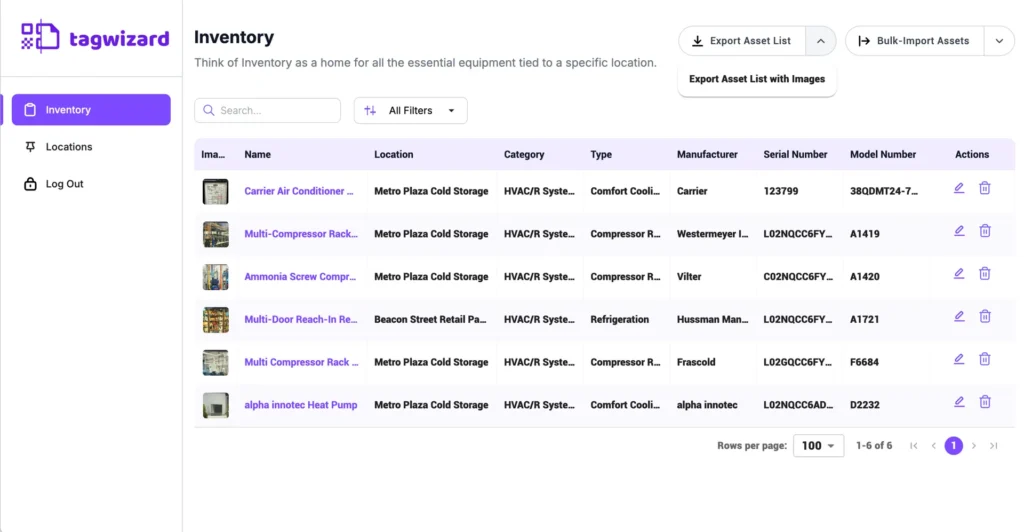
- Export the Assets list without Images
- Click the “Export Asset list” button
- Export the Assets list with Images
- Click the dropdown icon beside the “Export Asset list” button.
- Click “Export Asset list with Images”
Why it’s Great
You can now download a lightweight, text-only report in seconds when you don’t need images. The export with all your pictures is still available whenever you need it.
Import your existing assets into Tag Wizard with a single click
Bringing your existing asset records into Tag Wizard is now faster than ever. You can upload hundreds of assets at once by using our standardized Excel or Google Sheets template.
How It Works
- Navigate to your “Inventory”.
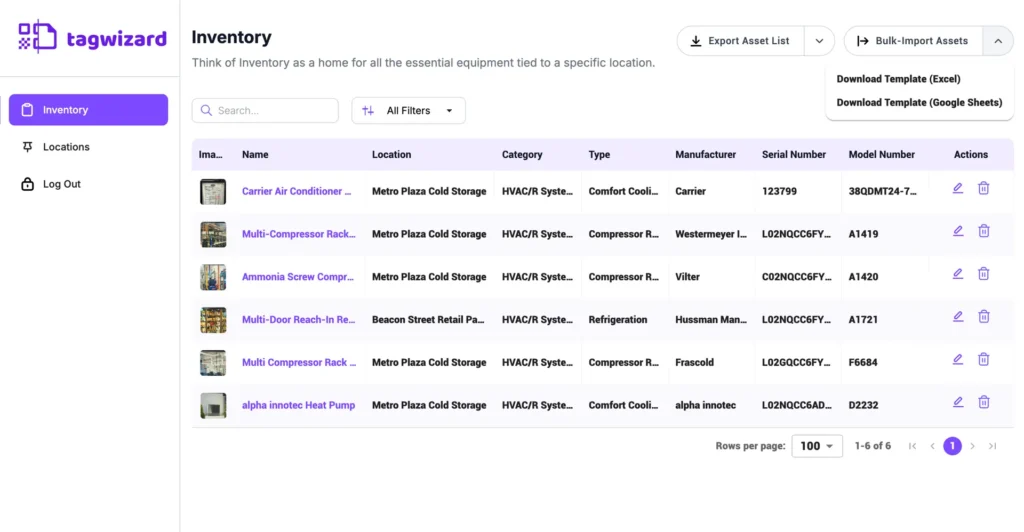
- Click the dropdown icon beside the “Bulk-Import Assets” button.
- Download a template that matches your preferred platform (Excel or Google Sheets) to enter your asset data.
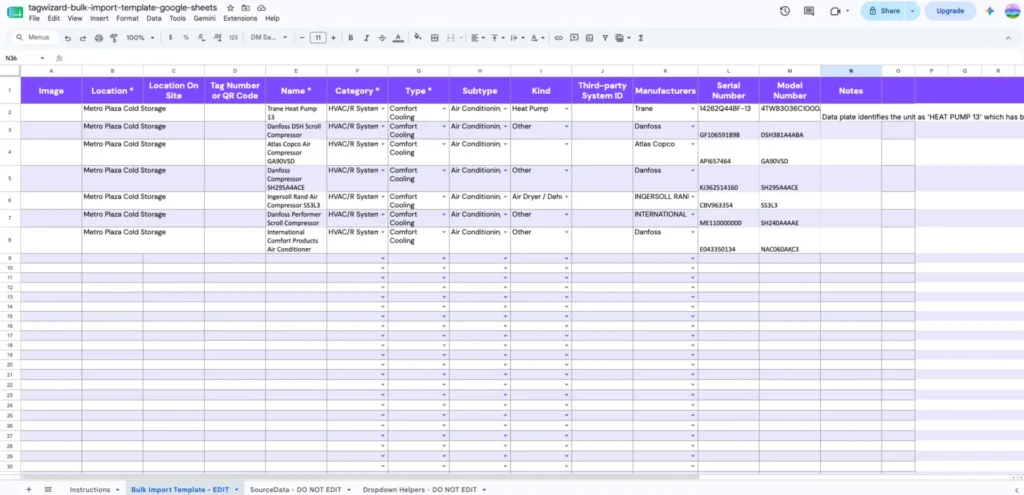
- Open the downloaded template
- Read the instructions
- Enter the asset data in the “Bulk Import Template – EDIT” tab and save the file.
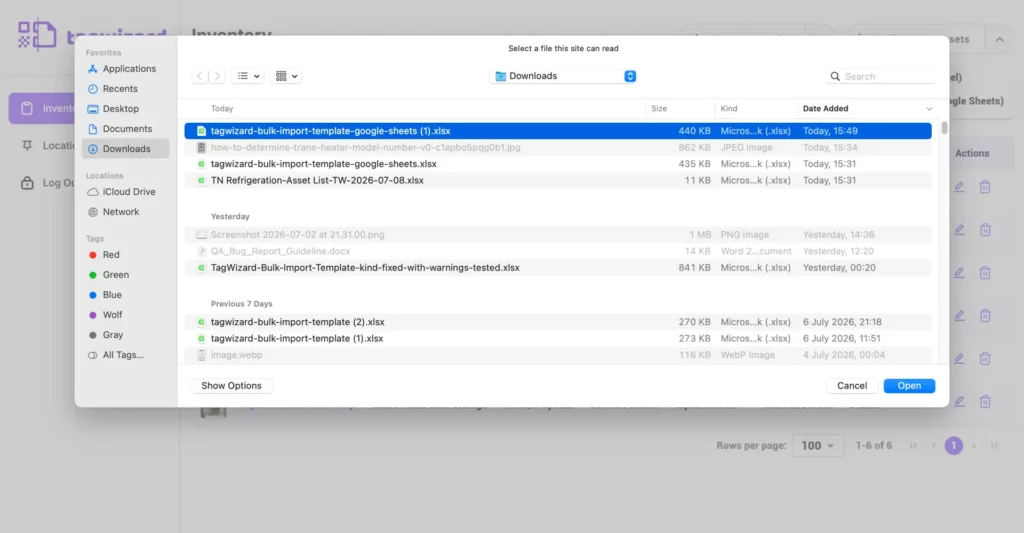
- Navigate to your “Inventory”.
- Click the “Bulk-Import Assets” button.
- Upload the completed template.
- Tag Wizard automatically validates your file and processes your assets based on three results:
- Successful import: All assets are added to your inventory.
- Partial Import: Valid assets are imported, while invalid or duplicate rows are skipped. You will get a summary of the rows that need fixing.
- Failed Import: No assets are imported. You will receive a detailed error message to help you correct and re-upload the file.
Why It’s Great
Skip hours of manual data entry by importing your entire inventory all at once.
Follow our taxonomy-mapped templates to keep your data clean and consistent across all locations, and easily include your asset images with the upload.
Asset Counts at a Glance
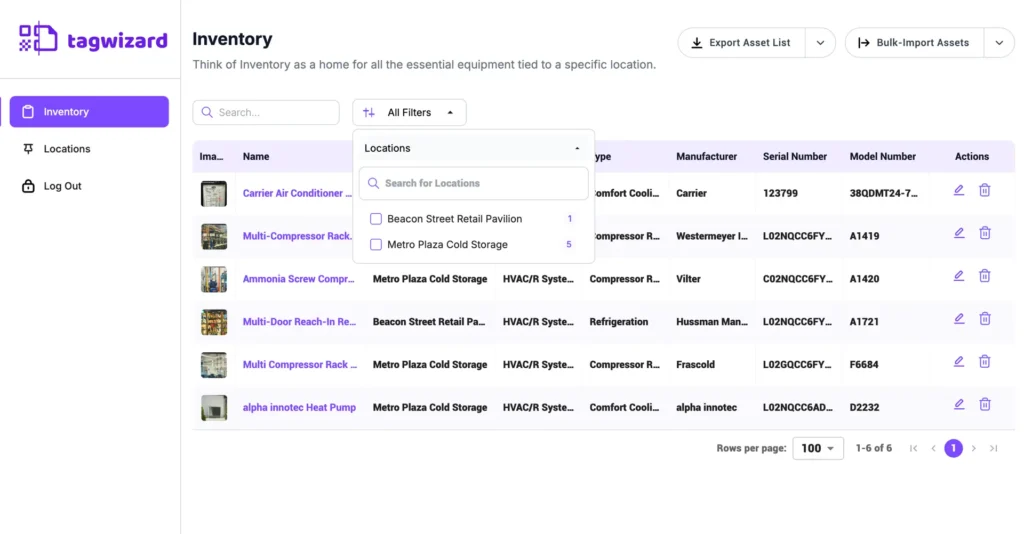
The location filters now display the total number of assets for each site.
Why it’s Great
This lets you see asset counts instantly before you even apply a filter.
Inventory Pagination
We updated the inventory with an improved pagination component, making navigation faster and more intuitive.
“Location On-Site” Filter
The “Location On-Site” filter on the Inventory page now follows your “Location” hierarchy. Selecting a top-level location automatically narrows the sub-locations down to only those nested underneath it, making your search faster and more accurate.
Progressive Loading
The tables now display data immediately, using progressive loading and skeleton placeholders for image thumbnails. This allows you to start working with your data right away instead of waiting for images and data to finish loading.