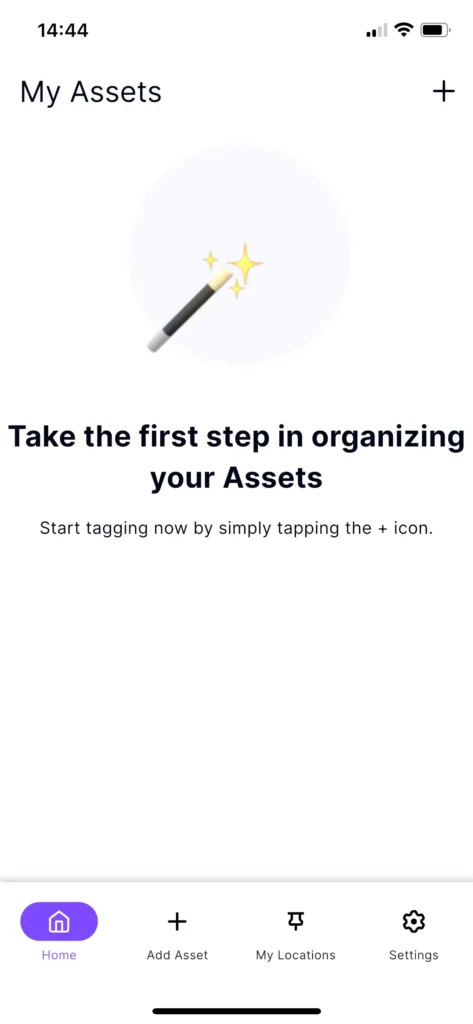
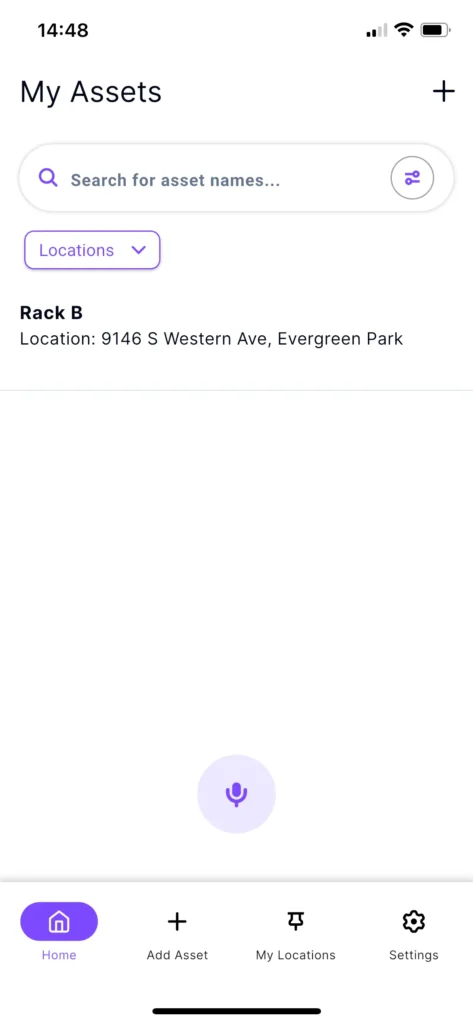
After logging in for the first time, you will arrive at the My Assets home screen. To start organizing your assets, simply tap the + icon or the Add Asset tab at the bottom of the screen.
Adding Assets
Navigate to the Add Asset screen by clicking on + Add Asset on the main navigation or clicking on the + at the top right of the My Assets screen.
Primary Asset Information
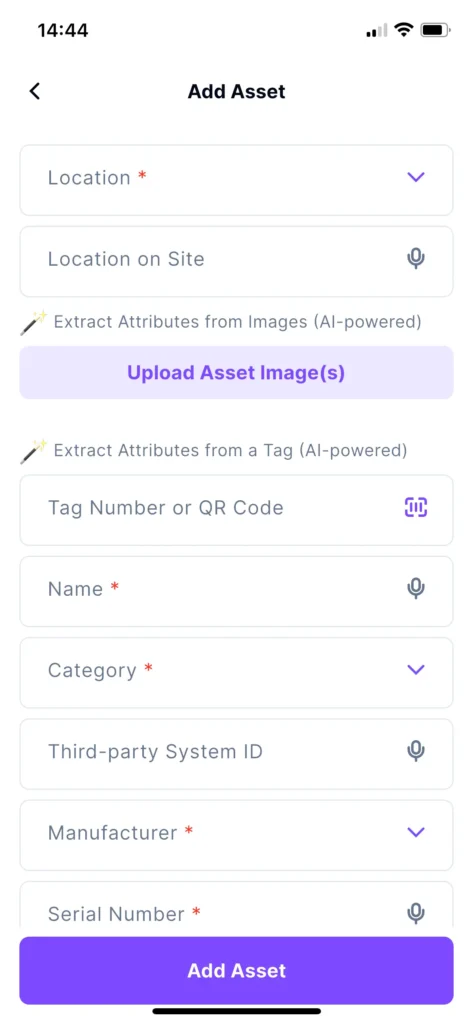
Location * A required dropdown field to select the primary site for the asset.
Location on Site A text field with voice-to-text capability to specify the exact area within a site.
Upload Asset Image(s) An AI-powered tool that allows you to upload photos to automatically extract asset attributes.
Tag Number or QR Code A field to manually enter a tag Number or use the camera to scan a physical tag.
Name * A required field to provide a descriptive name for the asset, supporting voice input.
Category * A required dropdown menu to classify the Category of the asset.
Third-party System ID An optional field for linking the asset to external databases or software, supporting voice input.
Manufacturer * A required dropdown field to identify the manufacturer of the asset.
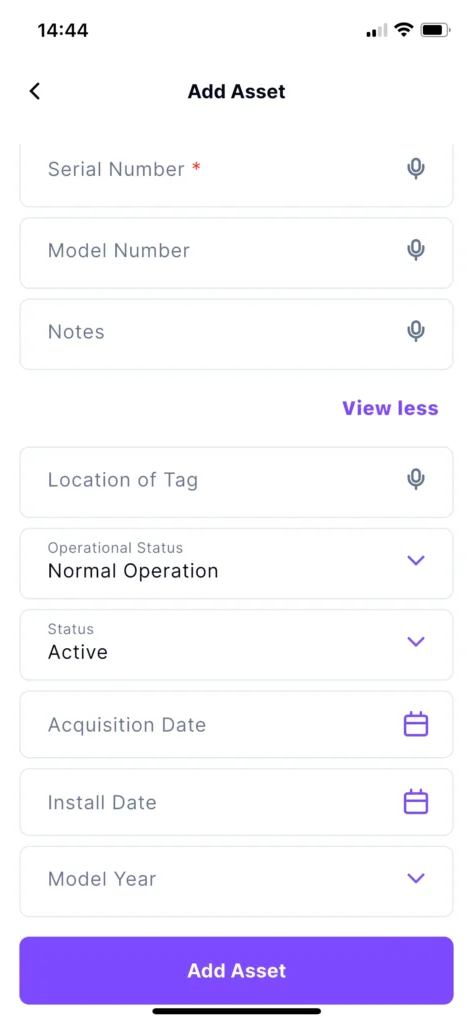
Serial Number * A required field for the unique manufacturer serial number, supporting voice input.
Technical & Model Details
Model Number A field to record the specific model identifier, supporting voice input.
Model Year A dropdown menu to select the year the asset was manufactured.
Notes A text area for additional comments or specific asset details, supporting voice input.
Location of Tag A field to describe where the physical tag is placed on the asset.
Status & Lifecycle
Operational Status A dropdown to set the current working condition (e.g., “Normal Operation”).
Status A dropdown to define the asset’s administrative state (e.g., “Active”).
Acquisition Date A date picker field to log when the asset was acquired.
Install Date A date picker field to log when the asset was officially put into service.
Asset Capture Feedback
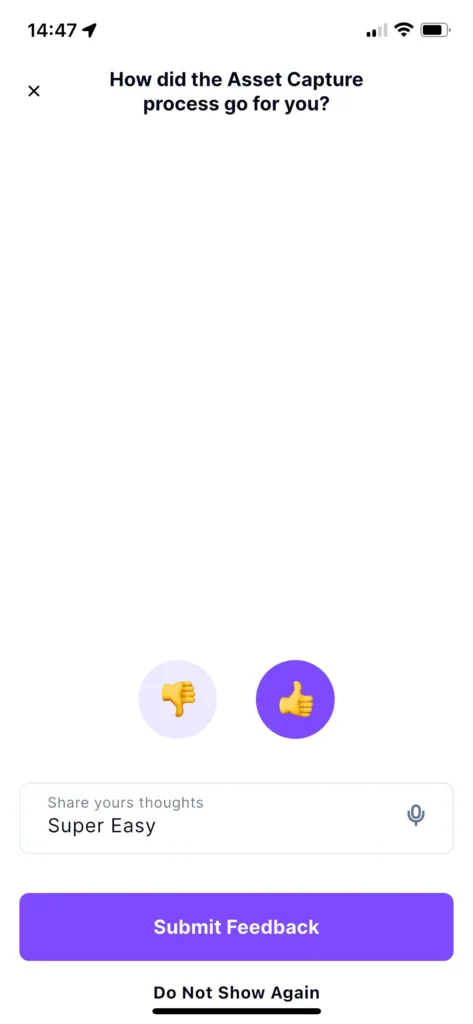
Once you finalize the “Add Asset” process, TagWizard displays a feedback screen to help us improve the asset capture experience.
Providing Feedback
Quick Rating Select either the Thumbs Up or Thumbs Down icon to provide an immediate rating of your experience.
Share Your Thoughts Use the text field to provide specific details about the capture process.
Tip: This field supports voice-to-text via the microphone icon, allowing you to dictate your feedback quickly.
Submit Feedback Tap the Submit Feedback button to send your comments to our team.
Dismissing the Screen If you do not wish to provide feedback at this time, you can tap the X in the top-left corner to return to your dashboard.
Opt-Out If you prefer not to see this prompt in the future, tap Do Not Show Again at the bottom of the screen.
Asset Management
After a new asset is added, it will appear on your My Assets screen.
From this screen, you can select any individual asset to view its full details or make necessary edits.