

1.0.14 – Release Notes – 2026/03/06
Version: 1.0.14
Asset Entry with Pre-Filled Location Data
Adding multiple assets in the same place is now significantly faster. The system remembers the location details from the previous asset, so users don’t have to repeatedly enter the same information.
How It Works
- Go to the “Add Asset” screen.
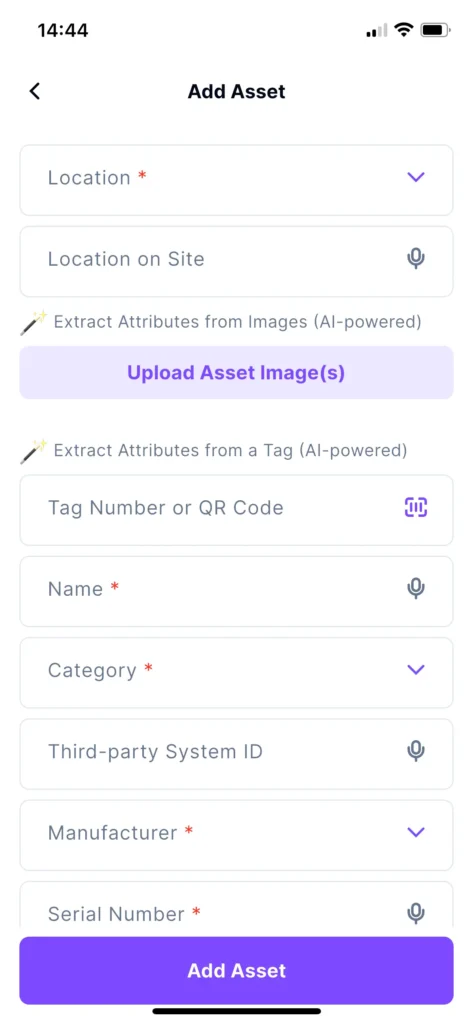
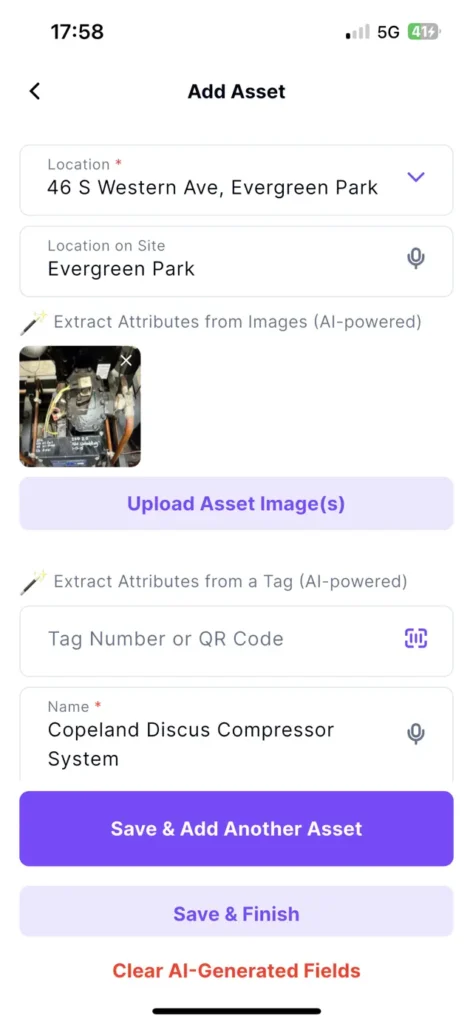
- Snap an Asset or fill in the information.
- Tap Save & Add Another Asset.
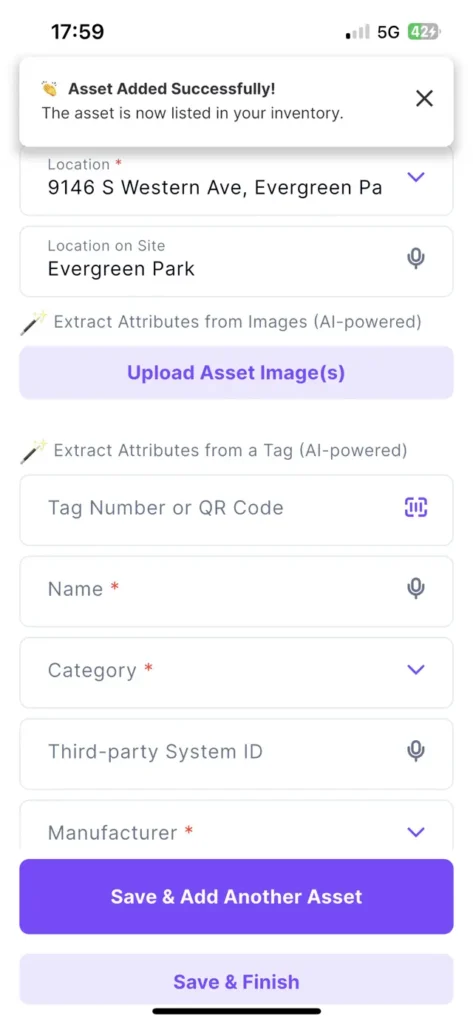
- A new asset form opens automatically.
- The Location and Location on Site fields are pre-populated with the previously used values.
- Edit the fields if needed before saving.
- Tap “Save & Finish” to reset the flow or tag to a different location.
Why It’s Great
When working on-site and capturing multiple assets in the same location, this feature eliminates repetitive data entry, making the process faster and smoother.
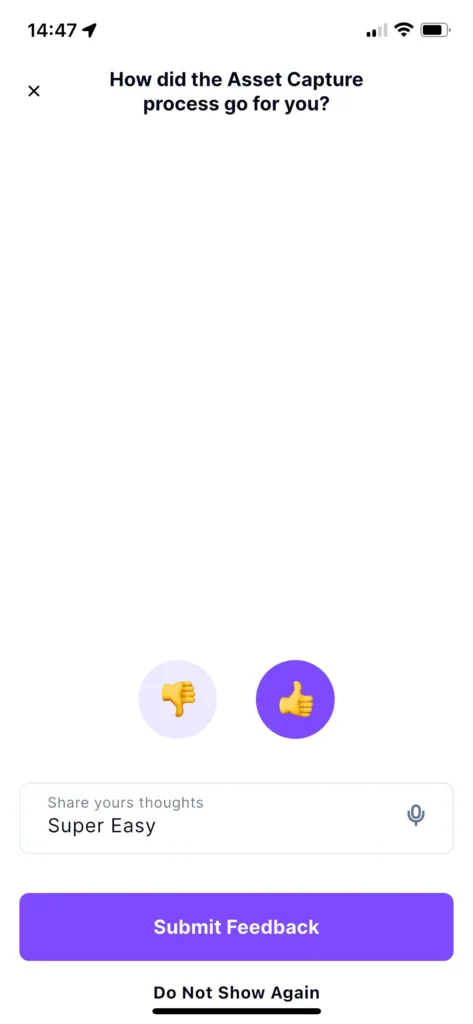
Asset Capture Feedback Optimization
To reduce interruptions, the feedback prompt will now appear once every 10 asset captures instead of after every capture.
🐛 Bug Fixes
Voice Input Adds Space in Search Bar
Search results now match the spoken input accurately.
Keyboard Behavior Improved
The keyboard will now automatically hide when returning to the Asset screen after navigating to another screen, preventing it from blocking the bottom navigation.
Asset Search State After Navigation
When navigating from My Locations → View Assets, the selected location will now automatically apply as an active filter on the My Assets screen.
Image Distortion Fix
Images captured using the camera are now displayed correctly without distortion.
AKO Device Category Detection
Capturing an AKO device now automatically assigns the correct category.